Showing posts with label blog tips. Show all posts
Thursday, January 27, 2011

How To Install BSA (BuySellAds) Ad Code into Blogger

Hello my dear friends, I am writing this post after a long while as I was very busy in my projects. Now a days It is going very popular in design community because this is good source of revenue. I have also recently registered with BSA (BuySellAds.com) Ads network and installed BSA ad code in my blogger successfully. Here's BSA detail page of TutorialFeed, you can also use this link if you want to advertise with TutorialFeed.

Some of my readers wrote me that they found difficulty during installing BSA ad code in a blogger platform. So in this post I am going to explain you how to install BSA ad code in a blogger. Before starting be sure that you have taken a backup of your blogger template. BSA provide you following ad code to install:

CODE 1:

<!-- BuySellAds.com Ad Code -->
<script type="text/javascript">
(function(){
  var bsa = document.createElement('script');
     bsa.type = 'text/javascript';
     bsa.async = true;
     bsa.src = '//s3.buysellads.com/ac/bsa.js';
  (document.getElementsByTagName('head')[0]||
  document.getElementsByTagName('body')[0]).appendChild(bsa);
})();
</script>
<!-- End BuySellAds.com Ad Code -->

CODE 2:

<!-- BuySellAds.com Zone Code -->
<div id="bsap_1255964" 
class="bsarocks bsap_5057c87fa5946e16d3fc40ab8c0715c4"></div>
<!-- End BuySellAds.com Zone Code -->

You need to copy CODE 1 and paste it before <body> tag of your template. Now Copy CODE 2 and paste it where ever you want to display the ad. For instance like I have place here under post and extreme right hand side. If you want to place ad under your post you need to locate following code in your template:

<div class='post-body entry-content'>

Now paste CODE 2 just after the above code. Next if you want to put ad extreme right column of your blog then locate following code in your template:

<div id='r_sidebar'>

Now paste CODE 2 just after the above code. At last save your template and check it now. It will show ad where you have put it.

If you find any difficulty please leave a comment or share this post.
Tuesday, September 8, 2009

A list of freebies on Blogger's 10th b'day

Recently Blogger completed 10th year of his online presence, on this occasion list of freebies has been announced by Blogger. If you are using blogger then you would definately love to add these new freebies to your blog.

In this post I'm sharing a list of freebies that has been announced by Blogger. This list included some new features like Earn Charity Donation, BlogPress, Share from Nav Bar, Label Cloud and TwitterFeed.

Here's the following list:

Earn Charity Donations with SocialVibe

You can earn charity donations on blogger by adding the SocialVibe gadget to your blog. The World Wildlife Foundation, Nature Conservancy, DonorsChoose, Invisible Children, and Charity:Water are just a few of the great charities you can support on Blogger.

SocialVibe

BlogPress

BlogPress is a iPhone Apps. It is also availabe on iPhone Apps stor. But on the occassion of Blogger's 10th b'day, BlogPress team has decided to build a free version of this app for blogger. This is simple yet powerful mobile application for blogging on the go.

BlogPress

Share from Nav Bar

This cool feature let's your readers to "Share" blog post URL to Twitter, Facebook, or Google Reader. If they navigate directly to an individual blog post, clicking "Share" in the navbar also lets them share the post by email.

Share from Nav Bar

Label Cloud

I like this new features. Previously, the label gadget showed a list of labels but now it can be shown as a "cloud" instead of as a bulleted list. It is directly configure with the gadget which enables you edit setting according to your choice.

Label Cloud

Label Cloud

Sending Blogger some Birthday Cheer

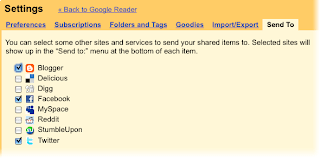
If you use Google Reader this new Send To feature is available for sharing some b'day cheers and other interesting things you want to share. Now, when you want to send a post to Blogger, simply click the "Send to" button and choose Blogger.

Sending Blogger some Birthday Cheer

Tweet your Blog

Tweeting your new blog posts is a great way to engage your readers. TwitterFeed automatically updates Twitter with each new blog post.

TwitterFeed

Do you have any opinion, leave a comment.

Sunday, August 2, 2009

Adding a Facebook Fan list to your blog or website

Today I would like to share that how to add a Facebook fan list to your blog or website (like I have added here at right sidebar). This is the best way for your blog/website readers to connect with you on Facebook.

The Facebook Fan Box is a social widget that allows you to attract and gain Facebook fans from your own blog/website. Before you add a Fan Box to your website, you need the following:

a) A website, and the ability to modify files on your website.
b) A Facebook Page that promotes your website (you must be an admin of the Page).
c) A basic understanding of HTML, so you can edit the pages on your website where you want to place the Fan Box.

Now lets add fan box to your blog/website

The Fan Box is based on the fb:fan tag. The easiest way to add the Fan Box to your site is to use the Add a Connect Widget wizard, which you reach in one of three ways:

» Under your Page's profile picture, click the Add Fan Box to your site link.

Facebook Fan Box

» Under your Page's profile picture, click the Edit Page link, then click the Add Fan Box to your site link under Promote Your Page.

Facebook Fan Box

» Following this URL to the wizard: http://www.facebook.com/developers/wizard.php then selecting the Page from the Make a Fan Box for this page list at the top of the wizard.

The Fan Box wizard appears.

Facebook Fan Box

Use the check boxes on the wizard to specify which elements of the Fan Box you want to show.

» Checking the Include stream check box displays your Page's stream on your site. The stream updates each time the Page loads.

» Checking the Include fans check box displays a certain number of your Page's fans. You can change this setting, as described below.

The wizard automatically generates the JavaScript code you need to easily add the Fan Box to your site. The wizard creates a Facebook application and corresponding API key. If you already have an API key from your Facebook Connect site or another Facebook social widget like the Comments Box or the Live Stream Box), you must replace the auto-generated key with that API key.

The JavaScript code the wizard generates looks similar to this:

<script src="http://www.facebook.com/js/api_lib/v0.4/FeatureLoader.js.php" type="text/javascript"></script>
<script type="text/javascript">FB.init("API_KEY", "");</script>
<fb:fan profile_id="YOUR_PAGE_ID" stream="1" connections="10" width="300"></fb:fan>
<div style="font-size:8px; padding-left:10px"><a href="VANITY_URL">PAGE_NAME</a> on Facebook</div>


Copy above code to any page on your site where you want to display a Fan Box.

Important: If you want to place a Fan Box on a page on your site that already references Facebook Connect (that is, the page contains one script that calls FeatureLoader.js.php and another that calls FB.init), then you must not reference these scripts again. You simply can just put in the fb:fan tag where you want the Fan Box to appear. As in:

<fb:fan profile_id="YOUR_PAGE_ID" stream="1" connections="10" width="300"></fb:fan>


Adding Facebook fan box to blogger

» Get the code for your Facebook Fan Box like above. This can be done in a few ways, see the image above, or visit the fb Fan Box Wizard.

» Sign in to Blogger and go to Layout > Page Elements.

» Click Add a Gadget.

» Choose Basics > HTML/Javascript

» Add a Title and paste the code for your Facebook Fan Box under Content.

» Click Save.

» Preview and edit again if necessary.

» Don't forget to Save the changes once you are finished.

You can edit this part according your choice:

fb:fan connections="6"
width="200"
height="554"


I request you all please become a fan of Tutorialfeed on Facebook by clicking here or by clicking at right side bar fan box. Exchange and share your ideas, tips, tutorials, resources etc. at TutorialFeed on Facebook.

Do you have any opinion, leave a comment.

Thursday, May 14, 2009

10 Free Forms for Blogger & Websites

If you are looking 'how to put a any form in a blogger' then this post is going to help you. Putting a form in blogger is very easy. All you need to do just create a new post and put a form code (Provided by following sites below) in body section of your post and publish it. That's it.

There are various sites across the web which offers free forms to use for Blogger & Websites. Here I am going to share top 10 sites which offers free forms for Blogger & Websites with embedded code.

1. Google Docs

Google Docs provide embedded code forms for your blog or website. Just login to docs.google.com and click on the New > From Template > Forms. Choose form of your choice and copy embedded code. Follow steps mentioned below:

GoogleDocForm

GoogleDocForm

2. FormSmarts

FormSmarts is an integrated web form service that lets you create forms, publish them online, and get form results. Add a web form to your site or blog, or let visitors access your form from MySpace®, Facebook®, and anywhere you can post a link.

FormSmarts

3. Kontactr

Kontactr is a one-click free contact form service. With Kontactr, you can fight against the amount of spam that you receive daily. Protect your email address by using our highly secure contact form. You can also use our simple tools to embed the form right into your own website.

Kontactr

4. Wufoo

Wufoo offers easy, copy/paste solutions for integrating a Wufoo form into a web page. For advanced users, full CSS and XHTML markup is also included. To simplify the process even further, the intuitive Wufoo theme manager allows you to customize the look of your form with a few clicks of the mouse so that your form seamlessly matches the look of your site.

Wufoo

5. ZOHO

Zoho Creator provides you with an easy drag-and-drop html form builder to build html forms online. Zoho Creator also makes it easy to embed HTML Forms in your website through simple copy/paste. Once you have collected data through HTML Forms, you can manage and edit the collected data online and share the data with others

Zoho

6. My Contact Form

It is now easier than ever to keep in touch with your site's visitors. The arduous task of creating contact forms, email forms, feedback forms, questionnaires, surveys, order forms, polls, or any other type of web form is a thing of the past!

MyContactForm

7. Free Contact Form

Script provided by this site works for a wide variety of website forms, not just contact us forms. These scripts are sometimes refered to as the following: contact form, website contact form, email form, PHP contact form, Javascript contact form, form to email, form 2 email, form2email, form generator, form builder, form maker, automatic contact form or contact form script.

FreeContactForm

8. FormSpring

FormSpring gives businesses and organizations an easy way to build any type of online form, integrate it with their website and begin collecting data. Once you have started collecting that data you can use the information you gathered in our online database or export it. With FormSpring anyone can build all types of web forms, collect data online and do it simply and efficiently.

FormSpring

9. Web Form Designer

WebFormDesigner can automatically validate your user's input - ensure the required fields are properly complete, and check that a valid email is input. Restrict input to alphanumeric, numerals only or just letters.

WebFormDesigner

10. Kampyle

Customize the look and feel of your feedback forms to fit your website's, as well as your business needs. Create multiple feedback forms for different locations of your website with the relevant questions for each page.

Kamyle

Do you have any suggestions? Leave your comment.

Tuesday, April 28, 2009

25 Smart Ways to Spice Up your Blogging Experience

As you all know Blogging is a very powerful platform to publish your blog. It’s free and with some features which you can customize how you prefer, without limits.

In this post I would like to share some blogger sites which are really helpful in terms of Blogger template design, Adsense placements in Blogger, Blogger Widgets, Social Media Buttons in Blogger and much more for your blog.

I have searched these (Blogger Tips) sites exclusively on the request of my readers.

If you have any good site on Blogging Tips and Tricks you can share by leaving a comment.

Blogger Help (Official Site)
Blogger Help

Blogger Buzz
Blogger Buzz

TechieBlogger
techie blogger

MintBlogger - Blogging Tips and Social Media
MintBlogger

Mashable - The Social Media Guide
Mashable

Tips Blogger - Blogging and Misc Jumbled Tips

PlasticMind Blog
PlasticMind Blog

Blogger Buster
Blogger Buster

Blogger Tips and Tricks
Blogger Tips Tricks

Google Operating System

BlogoSquare
BlogoSquare

Blogspot Tutorial
Blogspot Tutorial

Blogger Tricks
Blogger Tricks

Quick Online Tips
Quick Online Tips for Blogger

Blog Know How
Blog Know How

eTechBuzz - A Latest Technology Buzz
eTechBuzz

Blogger Plugins
Blogger Widgets

Blogging Tips
Blogging Tips

All Blog Tools
All Blog Tools

Blogger Trick
BloggerTrick

Smart Bloggerz
Smart Bloggerz

DuoBlogger
DuoBlogger

Widget for free
blogger widget for free

Blogussion
bloggusion

Woork - Blogger Tips & Tricks
woork

Do you have any suggestions? Leave your comment.

Tuesday, April 14, 2009

Save your Twitter profile from Twitter Worm

I have been reported by some of my twitter friends about the malicious worm affecting Twitter over the weekend. Its really very shocking for entire microblogging network.

The two worms "StalkDaily" and "Mikeyy" are spreading on Twitter like a fire in the jungle. Although Twitter started taking guard against the worms, security analysts fear that further mutations of the worm will continue to wreak havoc on the network over the week.

The worm was created by the 17-year-old Mike Mooney "out of boredom" and is now generating thousands of spam messages containing the word "Mikeyy." This is the fourth attack by the worm in the last four days, which sends Twitter messages from infected accounts and deletes twitter updates, without the owners' knowledge.

How to keep safe from "Mikeyy"

First of all, experts advise Twitter users not to click on any links from messages containing the words "Mikeyy" or "Stalkdaily." It is recommended you use third-party Twitter desktop clients like Twhirl or TweetDeck (both PC and Mac) and that you do not use the Web-based version of Twitter, especially for viewing user profiles (as this is where the attack seems to originate).

As an additional security measure, you can disable JavaScript in your browser. Firefox users can use the no-script add-on, which stops any unwanted scripts from running.

How to remove "Mikeyy"

If you've noticed any suspicious activity from your profile that includes the words above, then most certainly you're infected. It is very important for users not to retweet (RT) any of the fake messages.

Clear your browser cache and turn off JavaScript. Log into Twitter and delete any messages your profile automatically posted that contain the word "Mikeyy". You can turn JavaScript back on so you change your bio and URL, and reset your color scheme from your profile. Additionally, changing your password could be a safe measure.

After all the steps above were completed, log out of your account and you can continue using Twitter via a desktop client.

You can follow Daniel on Twitter at @danielionescu

Spread this information to save our Twitter and make every Twitterian happy :D

Source:pcworld.com

Place Google AdSense at top right below post's title on Blogger

I have found the most accurate place for Google AdSense to earn more income from my site, at top right position below post's title.

Blogger template have default option to show ads between posts and placed (below the post), isn't a good place for a good result in terms of revenue.


Adsense

So I have decided to change the position of AdSense and in my Blogger Template by using following steps:

Step 1

Login to your blog and go to Layout > Edit HTML make sure your Expand Widget Templates (See Image below) have checked it.

Blogger Template

Step 2

Find following code in your template copy it:

<b:if cond='data:post.includeAd'>
<data:adEnd/>
<data:adCode/>
<data:adStart/>
</b:if>


Step 3

Find following code in your template:

<div class='post-body'>

And paste copied code just below the code as shown below:

<div class='post-body'>
<div style='float:right'>
<b:if cond='data:post.includeAd'>
<data:adEnd/>
<data:adCode/>
<data:adStart/>
</b:if>
</div>


Its done now.

In this way, AdSense is more visible and in just a week my earning starts growing and my CTR for the most visited pages. In my opinion if you are using Blogger platform for your blog this would be great plus for you.

Wednesday, April 8, 2009

simplify+share+follow+publish = nomee

nomeeAfter a long while I found a very interesting software, 'nomee' is all-in-one social networking software.

Not another social site, nomee is the tool that helps manage them all.

Powered by Adobe AIR, nomee simplifies online networking by organizing your contacts and interests all in one place. So you can focus directly on your people, not their sites. And your people can better know you, direct from their desktop.

simplifysimplify

• Organize online relationships, so it's easy to focus on people, not sites.

• Monitor over 100 sites from one application.

• Get continuous desktop updates with the nomee newstream®. So you can see who's changed info before signing onto their sites.

• Save time online, because nomee lets you cut through the clutter. No more wasted time browsing multiple sites. nomee brings the news to you.

shareshare

• Control what you share with difference audiences. nomee lets you custom-bundle your info and access and create better one-to-one connections.

• It's your info. So nomee lets you point the right people to the right sites and share the "me" you want them to know.

• nomee alerts tell your friends when you have news. And the nomee newstream® delivers your headlines right to their desktops.

followfollow

• nomee™ knows why you network in the first place – to follow people, not sites.

• nomee organizes, monitors and links you to 100+ sites from a simple, all-in-one utility.

• nomee alerts tell you when your contacts make a change, no matter what sites they use.

• nomee newstream® provides your people’s headlines before signing on to their sites. So you decide what needs immediate attention.

Music | Tech | Sports | Celebrities | News | Politics | Business | Entertainment | Charities | Colleges | You!


publishpublish

• Collect and distribute all of your information on a “public” nomee card.

• Embed your public nomee card in your site, blog or Facebook page.

• Your fans can have all of your site and contact info in a single place and be alerted when you post new news.

• Public nomee cards are freely forwardable between fans, creating a robust buzz network for you.

For me nomee is a Arival Of The Fittest for social networking era.

Go to nomee.com to find more


Copyright © 2009 - tutorialfeed.org